Desktop PC repair
Desktop PC repair in Rock Hill, SC
Towers that won't power on, fans that spin with a black screen, beeping at startup, and PCs that shut off on their own.
It won't turn on at all
No lights and no fans usually means power isn't reaching the board. Before anything else, check the obvious: the switch on the back of the power supply (marked I/O) is on, the outlet works, and the surge protector isn't tripped. If all of that is fine, the power supply is the most common failure, followed by the front power button cable and the motherboard.
Fans spin but there's no picture
This one has a quick check. If your PC has a separate graphics card, the monitor cable has to go into the ports on that card, which sit lower on the back of the case. Plugged into the ports near the top (on the motherboard), you'll often get a black screen. Next suspects are a loose RAM stick, a failed graphics card, or a monitor set to the wrong input.
Beeps or blinking lights at startup
Desktops report hardware faults before Windows loads, with a pattern of beeps or a debug LED on the motherboard. The pattern means something specific to that board maker. Count the beeps or note which light is on and include it in your request. It narrows things down a lot.
It shuts off on its own or runs loud
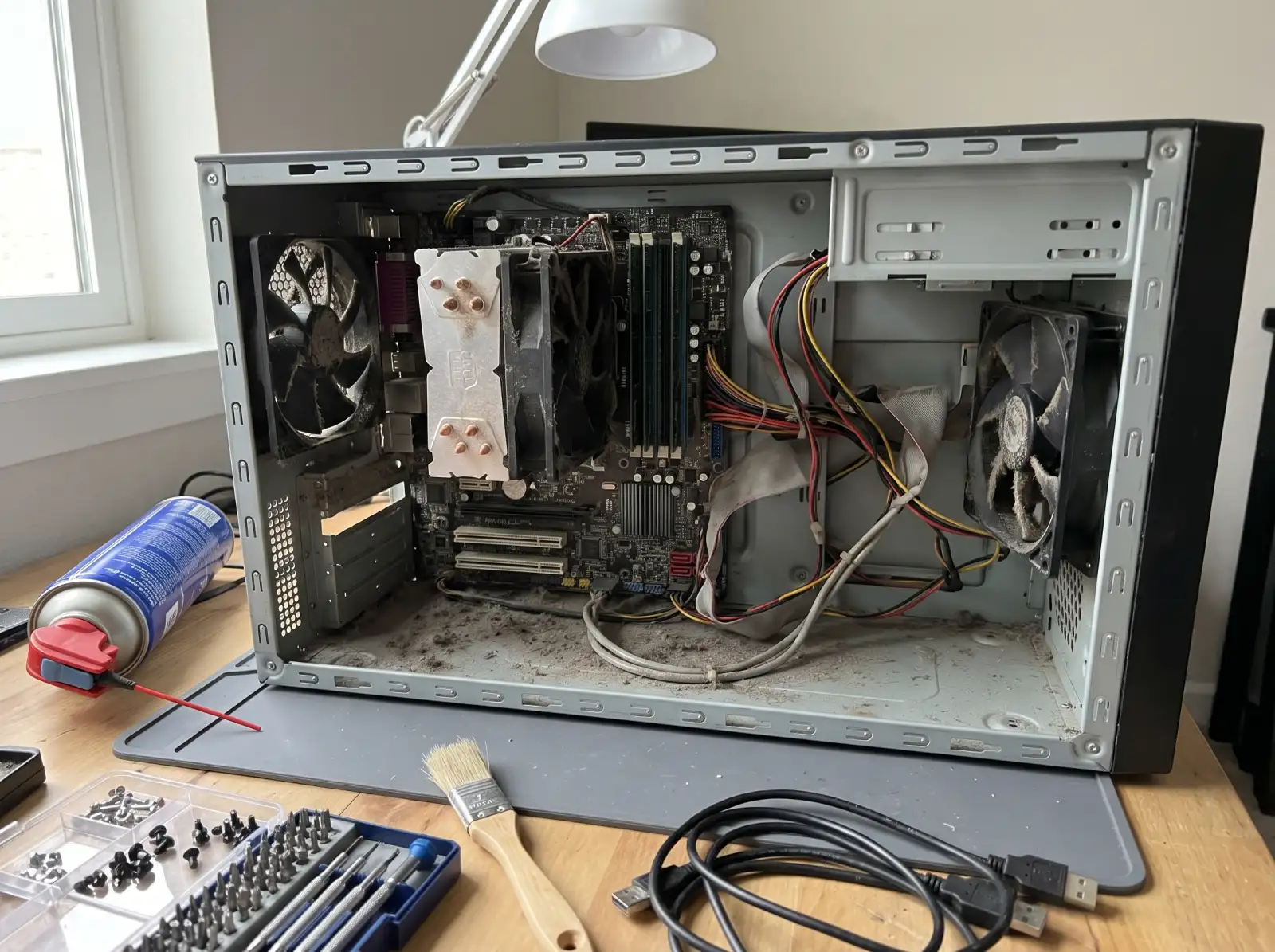
Random shutdowns, especially under load, point to heat or power. Dust packed into the CPU cooler and fans is common in a tower that has sat on carpet for a few years. Cleaning it and replacing dried-out thermal paste on the processor often fixes both the noise and the shutdowns.
The clock keeps resetting
If the date and time reset every time the PC is unplugged, the coin battery on the motherboard (usually a CR2032) is dead. It's a small fix, but an old one can also cause odd startup errors.
Common questions
Why does my computer turn on but nothing shows on the screen?
Check that the monitor cable is in the graphics card, not the motherboard, and that the monitor is on the right input. If that's fine, the usual causes are loose or failed RAM, a failed graphics card, or a power supply that can't hold up under load.
How do I know if the power supply is bad?
Common signs are no power at all, a click with nothing after it, a burning smell, or shutdowns when gaming or under heavy load. A power supply has to be tested or swapped to be sure, since a bad motherboard can look the same.
Is it worth repairing an old desktop instead of buying a new one?
Often, yes. Desktops are built from standard parts, so a power supply, drive or RAM can be replaced on its own. Adding an SSD to an older tower can make it feel new. If the processor can't run Windows 11, that changes the math.
Can you move everything from my old PC to a new one?
Yes, that's a normal job. Files, browser bookmarks and settings can move over. Programs usually need to be reinstalled on the new PC, so keep your license keys and logins handy.
Not sure what's wrong with it?
Describe what it's doing in plain words. That's enough to get started.
Start with the problem, not the jargon.
You don't need to know what part failed. Tell us the make if you know it, what the computer is doing, and when it started. We'll reach out the way you choose and talk through next steps.
- Windows laptops and desktops, Macs, gaming PCs
- Homes and small offices
- Rock Hill, Fort Mill, Tega Cay, York, Clover, Lake Wylie, Indian Land
Helpful if you have it: a photo of any error message, and the model number (usually on a sticker underneath a laptop or on the back of a desktop).